DaisyOS
Products
Solutions
Support
Language / 语言
Get a Free Quote
SYSTEM · DMS · CLOUD

DaisyOS Settings — Complete System Control

From RK3588 to Cloud DMS — unified configuration for every device parameter

Master every system setting on your interactive flat panel: display personalization, network connectivity, multi-layer security locks, remote device management via DMS, cloud account permissions, OTA firmware updates, and user management — the Daisy OS settings control hub centralizes everything on one screen.

System Configuration DMS Remote Control Security Lock OTA Update User Management Cloud Platform

DaisyOS Settings Dashboard

See how the Settings panel turns complex device management into a streamlined, intuitive experience for IT admins, teachers, and enterprise users.

DaisyOS Settings — Full System Configuration Walkthrough
System · Network · Security · DMS · Cloud · OTA — Complete Control Panel
⏱ Product demo · 2min

▶ Watch on YouTube →

Seven configuration domains: System, Network, Security, Equipment, DMS, Cloud, OTA

Multi-layer security: password, USB lock, app lock, touch lock, fingerprint, NFC

Cloud DMS remote control: shutdown, restart, brightness, volume, signal source, group messaging

5-level account hierarchy: Cloud Admin → OEM → School → Teacher → Student/Parent

Seven Domains, One Control Hub

From display preferences to fleet-wide OTA deployment — every system settings domain flows through a unified, intuitive Daisy OS settings architecture.
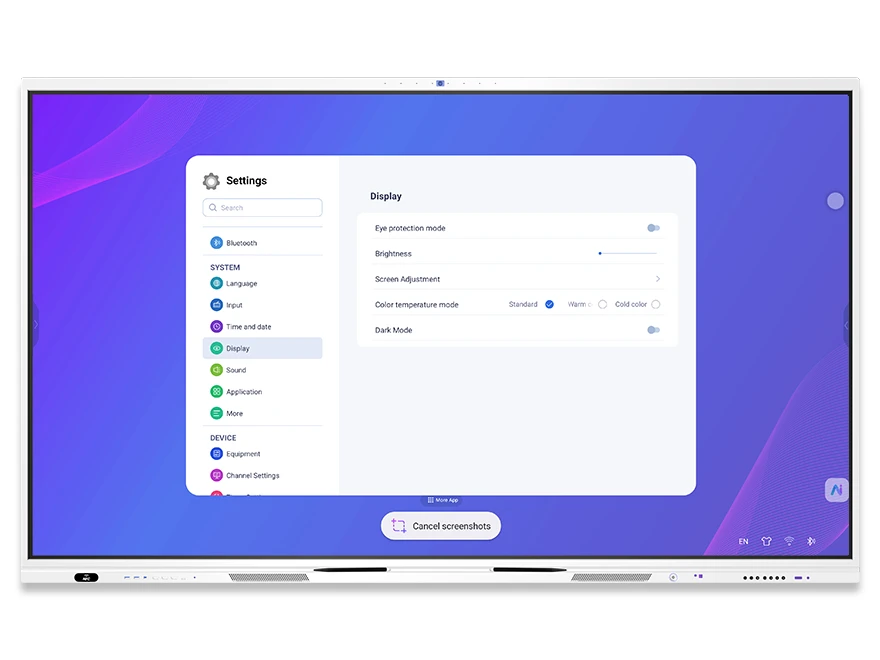
DaisyOS display settings interface — eye-care mode, brightness, color temperature, dark mode, language
System — Display

Display & Personalization Settings

Fine-tune the visual experience of every interactive display: brightness, color temperature, dark mode, eye-care mode, wallpaper, and system language — all accessible from a single panel.

  • Eye-care mode & color temperature — reduce eye strain during extended classroom or meeting sessions
  • Dark mode & brightness — adapt to any ambient lighting condition
  • Language & input method — Sogou Keyboard + Gboard, OEM-customizable language packs
  • Wallpaper & boot animation — brand-customizable startup logo and animation
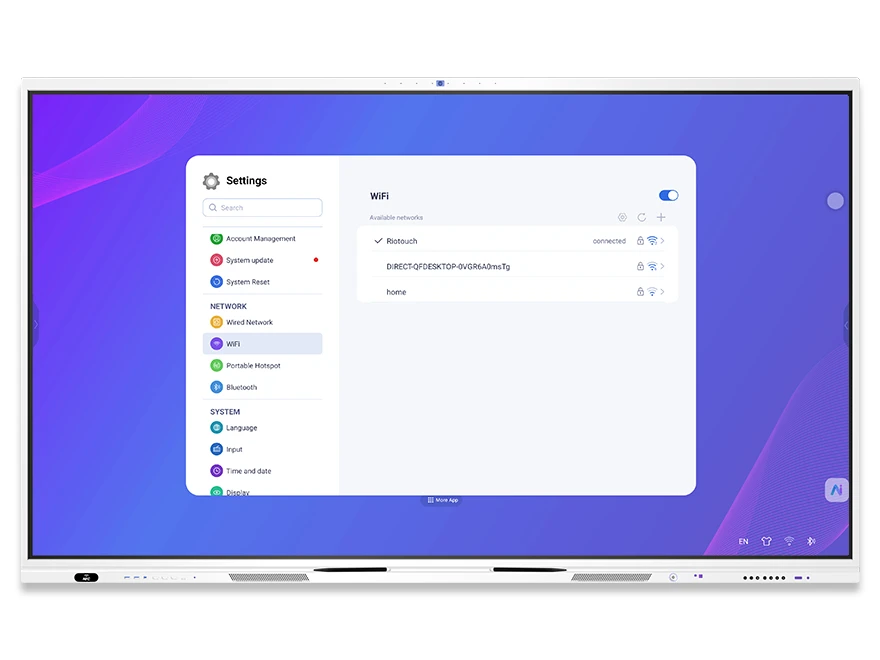
DaisyOS network settings — Wi-Fi, ethernet, portable hotspot, Bluetooth configuration panel
System — Network

Network & Connectivity Settings

Configure wired and wireless connections, manage Bluetooth peripherals, and set up portable hotspots — ensuring every device stays connected in any deployment scenario.

  • Wired Ethernet (NCE) — view and configure static/dynamic IP addresses
  • Wi-Fi configuration — connect to school or enterprise wireless networks
  • Portable hotspot — share internet connectivity with nearby devices
  • Bluetooth (PDA) — pair speakers, keyboards, and peripherals
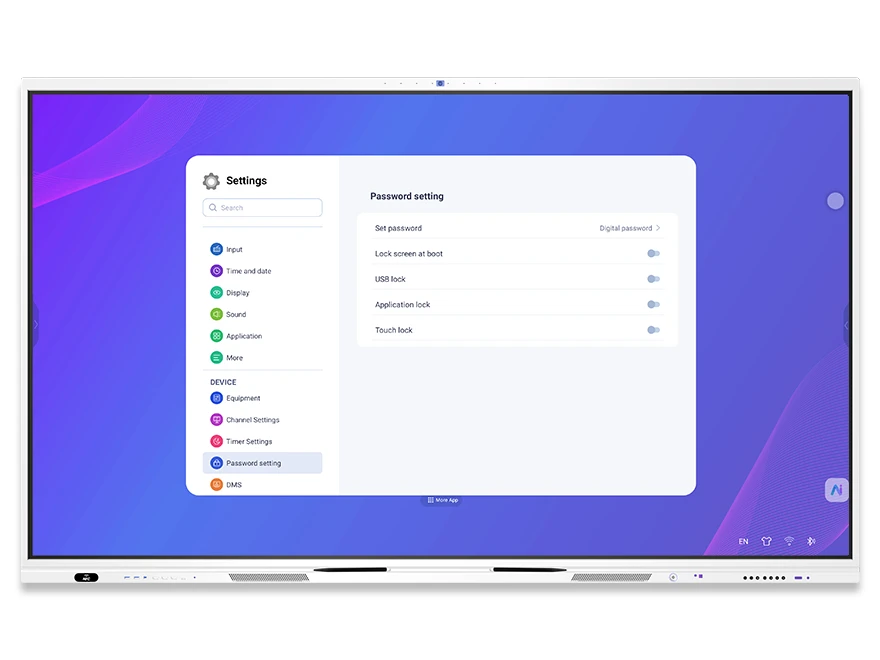
DaisyOS security settings — password, USB lock, app lock, touch lock, password authentication panel
Equipment — Security

Security & Access Control Settings

Multi-layer security architecture protects devices from unauthorized access. Password-protect boot, lock USB ports, restrict specific apps, disable touch input, and manage user authentication via fingerprint or NFC.

  • Boot lock screen — password required on startup to prevent unauthorized use
  • USB lock — block unrecognized USB drives to prevent data leaks
  • App lock & touch lock — restrict specific applications or disable touch input entirely
  • Fingerprint & NFC authentication — tap to switch user, load personal courseware and settings
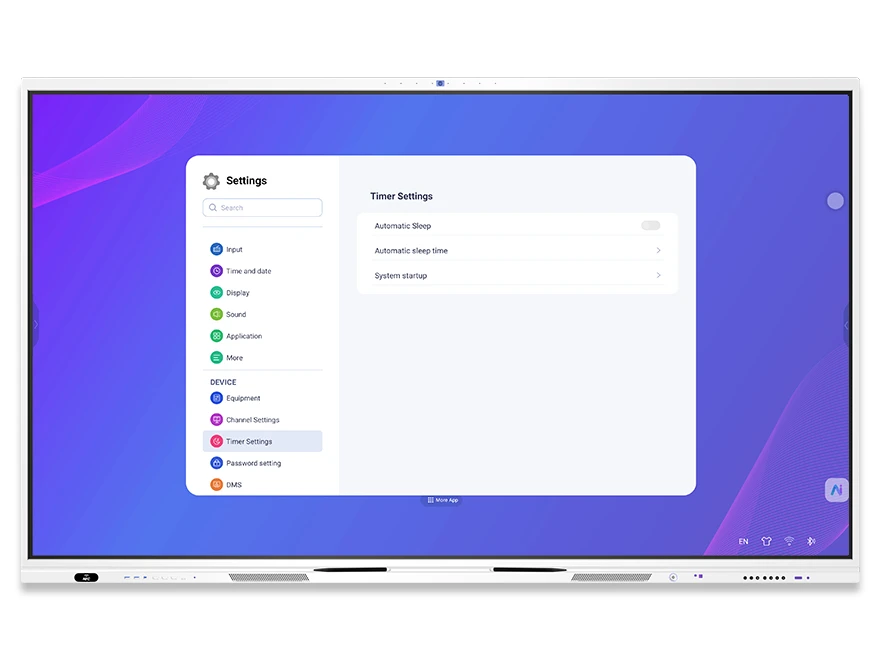
DaisyOS power settings — automatic sleep, sleep timer, system startup scheduling
Equipment — Power

Device Management & Power Control

Configure power-on behavior, manage sleep and standby modes, set scheduled power on/off, and define default signal channels. Complete lifecycle control for every interactive display in your fleet.

  • Timed power on/off — automate daily startup and shutdown for classrooms or meeting rooms
  • Sleep mode & auto-sleep — save energy when devices are idle
  • Power-on channel — set default signal source (HDMI, VGA, OPS) on boot
  • No-signal behavior — blue screen, auto-return, or standby configuration
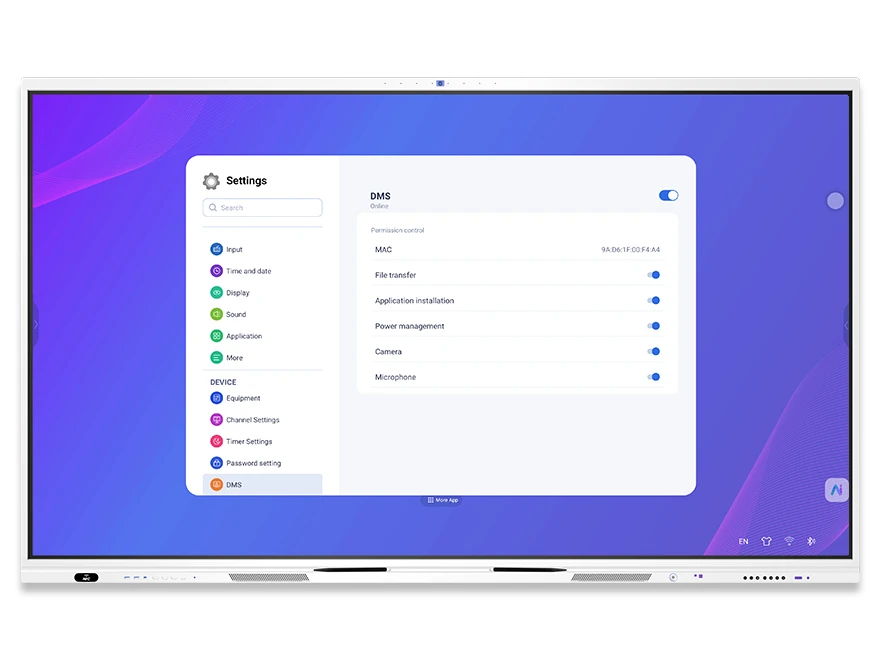
DaisyOS DMS remote device management — MAC address, file transfer, application installation, camera and microphone controls
DMS — Remote Control

DMS Remote Device Management

Remotely control individual devices or entire groups from the cloud DMS platform. Execute shutdown, restart, lock, unlock, brightness and volume adjustment, signal source switching, message broadcasting, and real-time classroom monitoring — no on-site visits required.

  • Remote power & screen control — shutdown, restart, wake-on-LAN, lock/unlock, child lock
  • Parameter adjustment — backlight, volume, signal source, language, timed power on/off
  • Group control — group by city, school, or grade; send commands and messages in bulk
  • Real-time monitoring — live screen capture, classroom activity pictures, and audio monitoring
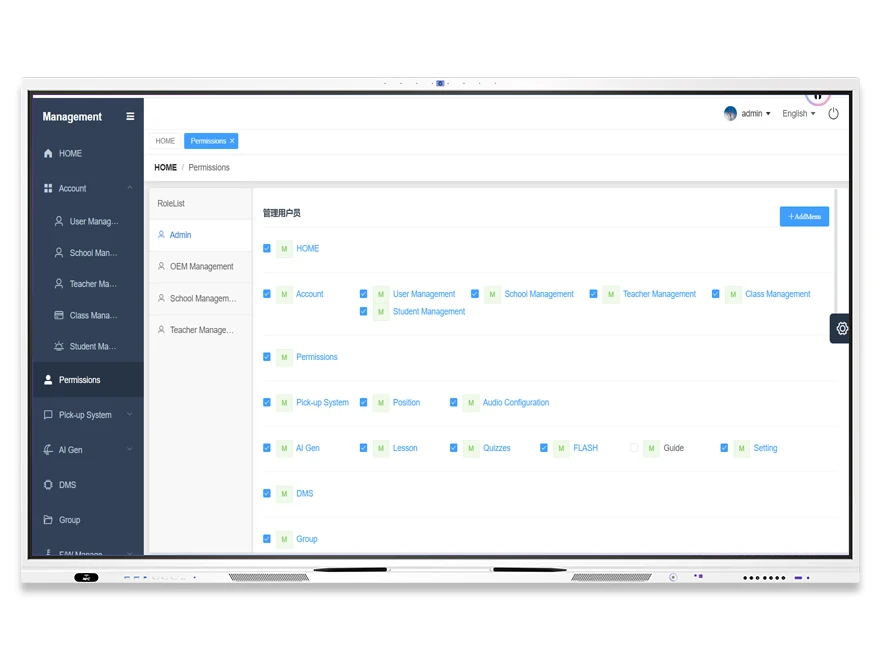
DaisyOS cloud account permissions — admin roles, user management, OEM permissions, 5-level hierarchy management
Cloud — Accounts

Cloud Account & Permission Settings

A hierarchical 5-level account system ensures every stakeholder — from cloud administrators to students and parents — has precisely the right access. Manage users, schools, teachers, classes, and students with granular role-based permission controls.

  • Cloud Admin (Level 1) — full system management, user/device control, OEM account creation
  • OEM/Brand Admin (Level 2) — firmware & OTA management, app store, device grouping, sub-accounts
  • School Admin (Level 3) — upload teaching resources, device control, message sending
  • Teacher (Level 4) & Student/Parent (Level 5) — courseware editing, test results, class video reviews
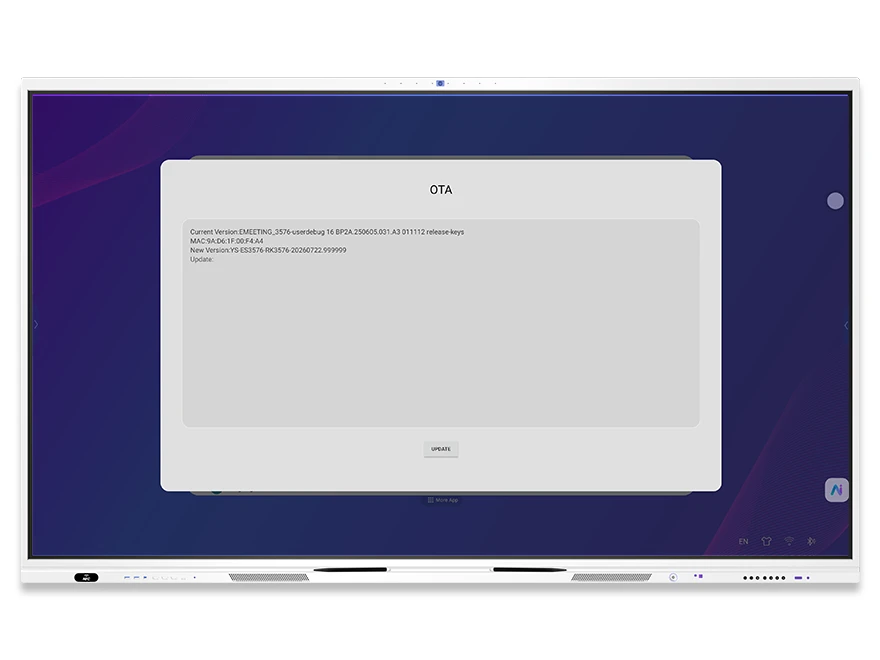
DaisyOS OTA firmware update panel — current version, new version update, release keys
System — Maintenance

OTA Updates & System Maintenance

Keep every device current with seamless over-the-air firmware updates. Manage local and online upgrades, factory reset when needed, and track system logs — all from the Settings panel or cloud DMS platform.

  • OTA online update — one-click firmware upgrade with version notification
  • Local upgrade — update via USB or local package for offline deployments
  • Factory reset — clear all data and restore to default settings
  • System logs — operation commands, login logs, and system event tracking for audit and troubleshooting

Built for Every Deployment

From K-12 classrooms to enterprise meeting rooms and large-scale IT fleet management — DaisyOS Settings adapt to your operational scale and security requirements.

Education — Classroom Device Management

Configure eye-care mode, timed power schedules, exam-mode USB lock, and NFC card access — all from one panel.

Enterprise — Conference Room Configuration

Manage BYOD signal channels, network isolation, Bluetooth peripherals, and dark mode for executive boardrooms.

IT Administration — Remote Fleet Control

Push OTA updates, group devices by location, monitor status in real time, and troubleshoot remotely — all via DMS.

Frequently Asked Questions

Quick answers about DaisyOS Settings configuration, security, and device management.

DaisyOS provides a multi-layer security architecture: boot lock screen with password protection, USB lock (blocks unrecognized drives), application lock (restricts specific apps), touch lock (disables touch input, requires mouse to unlock), and biometric authentication via fingerprint and NFC card. All security settings are managed from the Equipment → Security panel.
DMS (Device Management System) enables cloud-based remote control of interactive displays. IT administrators can remotely execute shutdown, restart, lock/unlock, brightness and volume adjustment, signal source switching, and firmware updates. Devices can be grouped by city, school, or grade for bulk operations. Real-time monitoring includes live screen capture, classroom activity snapshots, and audio monitoring. DMS is enabled in Equipment → DMS settings.
The cloud platform supports five permission levels: Level 1 (Cloud Admin) has full system and device control; Level 2 (OEM/Brand Admin) manages firmware, OTA, app store, and sub-accounts; Level 3 (School Admin) uploads resources and controls assigned devices; Level 4 (Teacher) edits courseware and reviews test results; Level 5 (Student/Parent) accesses class recordings and test reviews. Each level has granular, role-based permissions configured in the Cloud Account settings.
Yes. OEM partners can fully customize boot logos, animations, default wallpaper, system language, and input methods. These settings are configured in System → Display and via the cloud platform's OEM configuration panel. The cloud also supports multi-language package download and upload, CDN acceleration, and primary/secondary domain name customization for brand-specific deployments.
📩 Request a Quote

Need a Solution That
Fits Your Project?

Tell us what you're looking for and we'll tailor a quote to your requirements — with pricing, lead time, and expert advice.

HeadquartersRoom 201, No. 5, Chang An Zhenyuan East Road,
Dongguan, Guangdong, China
Get Your Custom Quote
Fill out the form and we'll get back to you within 12 hours.
Quick InquiryGet a quote
✓ Sent! We'll reply within 4 hours.
Chat on WhatsAppReply in minutes